Thursday, November 3, 2016

QoS Enhacements in CUCM 11.X

  • These were added in CUCM v11
  • The main enhancements are:
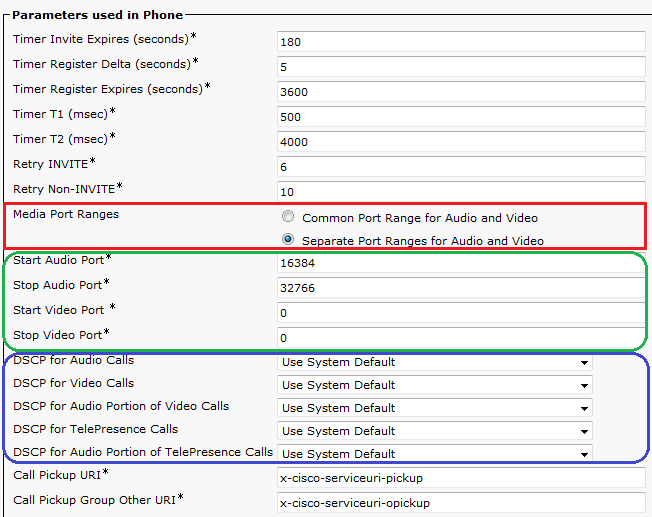
    • Separating UDP Port Ranges for Audio and Video
    • Separating DSCP Markings for Audio and Video streams in Video Calls
      • You can have separate markings for audio in Telepresence video call than Fixed video call
  • Navigate to Device > Device Settings > SIP Profile.
  • Current endpoints which support this enhancement (03/11/2016)
Video Endpoint
DSCP for Audio Portion of Video Calls
DSCP for Audio Portion of TelePresence Calls
8800 Series
Yes
N/A
8900 Series
No
N/A
9900 Series
No
N/A
Jabber
Yes (Jabber for Windows uses Group Policy Objects to mark traffic on the PC else DSCP will be set to '0'. All other Jabber clients are able to mark DSCP natively)
No
DX Series
Yes
Yes
TX Series
N/A
Yes
IX Series
N/A
No
CE 8.x Software Series (SX Series, MX Series G2, MX700, MX800)
N/A
Yes
TC 7.1.4 Software Series (C Series, Profile Series, EX Series, MX Series G1)
N/A
Yes
EX Series (TC Software)
N/A
Yes

  • Restrictions
    • These features are supported on SIP endpoints Only
    • For Jabber Softphones, only separate UDP ports can be used. This is because Windows OS doesn’t allow DSCP markings natively (can be fixed by registry tweak or using GPO)
    • Prior to this feature, Jabber Client will divide the RTP Port Range received in TFTP File into two splits. Lower half will be used for audio and upper half will be used for video

Enable DSCP Markings on Windows OS (7, 8, 10)

By default windows OS will set DSCP markings to '0' ignoring the marking settings on the client. This can be good and bad.

A good scenario is to make sure that torrent clients aren't getting priority (while ideally your enterprise network qos policies should overcome this problem as well)

A bad scenario is overriding DSCP markings from Jabber Client which marks packets genuinely  for seperating audio and video streams treatment.

While you can still overcome the problem of Jabber Client using network QoS policies, you can allow QoS marking on windows OS as follow:

1. Go to HKLM\System\CurrentControlSet\Services\Tcpip\QoS. If "QoS" folder doesn't exist there - create it.
2. Add a DWORD parameter named "Do not use NLA" and assign "1" as its value.
3. Reboot.


Tuesday, November 1, 2016

Notes on Self-Service ID


  • The Self-Service User ID is generate automatically once the primary extension is assigned to the End User
    • The Primary extension can be assigned manually, using LDAP or using BAT
    • For LDAP Self-Service IDs it will be generated during the 1st LDAP sync (not on LDAP update)
  • Self-Service ID will be generated only if the user doesn't have one
  • For upgrades from Pre-10.x to 10.x, Self-Service ID will be generated for users with Primary Extensions
  • When same DN is assigned to multiple partitions and to multiple users as primary extension, Self-Service ID will be made unique by prefixing a code of *01, *02, etc
  • You can change the Self-Service ID, manually from End User configuration page

LDAP Enhancements in CUCM


  • CUCM can synchronize users and groups from LDAP
    • Introduced in version 11
    • LDAP Filter can be created for users and groups
    • Primary use to have Active Directory groups available in the Cisco Jabber contact list
  • CUCM can assign Access Control Groups to LDAP users from synchronization Agreement
  • CUCM can assign Feature Group Template to LDAP users from synchronization Agreement
    • This will assign User Profile to synched user which includes UDT and ULT
    • This will assign Service Profile to synched user which include UC Services (IMP, CUC, etc for jabber)
    • This will configure user settings such as Enable Mobility, Enable EMCC, Allow End User to Host Conference Now
    • This will allow user to run Self-Provisioning
  • CUCM can create DNs for LDAP users and assign them as primary extension using the option Apply mask to synced telephone numbers to create a new line for inserted users
    • The DNs will be based on the TelephoneNumber or ipPhone attributes configured in AD
    • A mask can be applied to these attributes to manipulate the created DNs
    • In case the synched users are missing phone numbers, CUCM can allocate DNs dynamically from pre-configured pool using the option Assign new line from the pool list if one was not created based on a synced LDAP telephone number
  • Navigate to System > LDAP > LDAP Search to integrate CUCM environment with LDAP Environment without synchronization
    • This feature will enable all endpoints and Cisco mobile and remote access clients in the enterprise to perform user searches against an enterprise directory server, even if those endpoints and clients are operating outside the enterprise firewall

CUCM Self-Provisioning


  • This feature allow end-users or administrators to provision phones with minimum admin work
  • It was introduced with CUCM 10.x
  • The users need to follow the prompts on the phones to login to CUCM which will auto-provision the phones
  • How it works?
    • The phone auto-registers with CUCM
    • During auto-registration it gets an idle URL.
    • This idle URL points the phone to self-provision XPS resource running on CUCM
    • Once the phone contacts the XPS resource, it will be prompted for user ID/pin
    • From here there are two approaches to complete Self-Provisioning
      • Option#1
        • When the users enter the user ID and PIN, they are authenticated with the CM and their primary extension is determined
        • The users are then prompted to confirm that they wish to provision the phone using their primary extension. If they confirm, the phone will be provisioned and reset
      • Option#2
        • The users can call Self-Provision IVR
        • The users need to enter Self-Service ID and PIN
        • Upon confirmation, the phone will be provisioned using the End User Primary Extension
  • To disable self-provisioning, delete the idle URL from phones configuration, enterprise parameters, auto-registration Universal Device Template (UDT)
  • To configure Self-Provisioning
    • Verify UDT assigned to System > Cisco Unified CM > Auto Registration Information > Universal Device Template.
    • Navigate to User Management > User/Phone Add > Universal Line Template > Add New
      • Assign default Partition and CSS to be used for self-provisioned DN
      • Configure other settings such as Call Forwarding, Enterprise Alternate Number, +E164 Alternate Number
    • Configure auto-registration settings under System > Cisco Unified CM > Auto Registration Information
      • Assign UDT, ULT and Starting/Ending Directory Numbers
    • Navigate to User Management > Self-Provisioning and configure the authentication method for end users to run self-provisioning
      • Require Authentication
      • No Authentication: In this mode the end users need to enter the username which will trigger the provisioning without a need for PIN/Password
    • Navigate to User Management > User Settings > User Profile > Add New
      • This user profile will be used to configure the device and line settings of the phone during self-provisioning
      • Assign UDT for Desk Phones, Mobile and Desk Devices and RDP
      • Assign ULT
      • Enable Allow End User to Provision their own phones and set the max number of phones to be self-provision
    • Navigate to User Management > User/Phone Add > Feature Group Template > Add New
      • This is used with users synced from AD or users added using quick add feature
      • It will assign Users Profile to synced users
      • It will assign Service Profile to synced users
      • It will configure users settings for synced users such as Enable IM and Presence, Enable Mobility, Enable EMCC, Enable End User to Host Conference Now
    • Add End User
      • The main parameters in end user settings needed for self-provisioning are:
        • User Profile
        • Primary Extension
      • In case the End Users are synced from AD or added using Quick Add, the User Profile will be synched using Feature Group Template
        • Primary extension should be created manually in case of Quick Add or synched automatically in case of AD
      • In case the End Users are added manually, these parameters needs to be assigned manually.
    • Setup Self-Provision IVR
      • Configure CTI Route Point which can be dialed from Auto-Registeration CSS
      • Configure Application User with Standard CCM EndUser and Standard CTI Enabled access control groups
      • Associate the CTI Route Point as controlled device to Application User
      • Navigate to User Management > Self-Provision and assign the CTI Route Point and Application User
  • Troubleshooting Self-Provision IVR
    • IVR Component runs on Publisher Node Only (it doesn’t run on Subscribers)
    • If auto-registered phone doesn't get the configured Phone Button Template in UDT, make sure that Auto Registration Legacy Mode is False in the Enterprise Parameters
      • This setting will disable UDT for auto-registration and fallback to Device Defaults
    • Any change in the Application User or CTI Route Point needs a restart of IVR Self-Provisioning service
    • If the auto-registered phone can't dial CTI Route Point DN, ensure that the region bandwidth between CTI and Phone is greater than 8000

Sunday, October 23, 2016

Summary of CUCM Supported Codecs

I just thought to put a summary list of CUCM supported codecs


  • G.711: It has two versions, A-Law & Mu-Law. You can disable CUCM support for G711 using the service parameter G.711 mu-law Codec Enabled or G.711 a-law Codec Enabled
  • G.722: This is wideband codec that is always preferred by CUCM over G.711, unless Advertise G.722 Codec enterprise parameter is Disabled.

Enterprise Parameter Setting
Phone (Product-Specific) Parameter Setting
Phone Advertises G.722
Advertise G.722 Codec Enabled
Use System Default
Yes
Advertise G.722 Codec Enabled
Enabled
Yes
Advertise G.722 Codec Enabled
Disabled
No
Advertise G.722 Codec Disabled
Use System Default
No
Advertise G.722 Codec Disabled
Enabled
Yes
Advertise G.722 Codec Disabled
Disabled
No

When users use a headset that supports wideband, they can enable Wideband Headset feature from the phone settings for better quality. On the phone navigate to Settings > User Preferences > Audio Preferences > Wideband Headset.

Enabling the Advertise G.722 Codec parameter causes interoperability problems with UCCX CAD, call park and ad hoc conferences. Keep it disabled.

You can disable CUCM support for G722 from the service parameter G.722 Codec Enabled. If G722 Codec is disabled, Advertise G722 Codec enterprise parameter is ignored

  • G.722.1: A low-complexity wideband codec operating at 24 and 32 kb/s.
  • G.723.1: Low-bit-rate codec with 6.3 or 5.3 kb/s compression for Cisco IP Phone 12 SP+ and Cisco IP Phone 30 VIP devices.
  • G.728: Low-bit-rate codec that video endpoints support.
  • G.729: Low-bit-rate codec with 8-kb/s compression. The codec has 4 versions:
    • G729: original codec. Uses high-complexity algorithm
    • G729A or A annex: medium complexity variant of G.729 and it is compatible with G729. It is less complex but has slightly lower voice quality
    • G729B or B annex: G729 with VAD and not compatible with the previous ones. It requires a transcoder
    • G729AB: G729A with silence suppression and only compatible with G729B.

IOS can distinguish between all versions of G729 while CUCM can't. CUCM will treat G729r8 and G729ar8 equally. Similarly, CUCM will treat G729br8 and G729abr8 similarly.

By default Annex-B support is turned off in IOS and CUCM.

To enable AnnexB in IOS,

voice service voip
 sip
  g729 annexb-all

To enable AnnexB in CUCM, set the service parameter 'Strip G.729 Annex B (Silence Suppression) from Capabilities' to False

v=0
o=CiscoSystemsSIP-GW-UserAgent 2385 707 IN IP4 10.170.170.2
s=SIP Call
c=IN IP4 10.170.170.2
t=0 0
m=audio 29384 RTP/AVP 18 8 0 19
c=IN IP4 10.170.170.2
a=rtpmap:18 G729/8000
a=fmtp:18 annexb=yes
a=rtpmap:8 PCMA/8000
a=rtpmap:0 PCMU/8000
a=rtpmap:19 CN/8000
a=ptime:20

  • GSM: GSM enables the MNET system for GSM wireless handsets to operate with CUCM. Assign GSM devices to a device pool that specifies 13 kb/s as the audio codec for calls within the GSM region and between other regions. Depending on device capabilities, this includes GSM EFR (enhanced full rate) and GSM FR (full rate).
  • L16-Uncompressed: 16-bit linear pulse-code modulation (PCM) encoded audio with a 16-kHz sampling rate provides wideband audio at 256 kb/s.
  • AAC-LD (mpeg4-generic): Super-Wideband codec
  • AAC-LD (MP4A-LATM):  Super-Wideband codec
AAC-LD (mpeg4-generic) and AAC-LD (MPA4-LATM) are not compatible

  • iSAC
    • This is a wideband codec uses an adaptive bit rate of between 10 and 32 kb/s
    • Each packet can contain 30 or 60 msec of payload). It has better tolerance to jitter and packet loss compared to G722 at half the bit rate

It has two modes:
  • Adaptive: In this mode the target bit rate is adapted to give a bit rate corresponding to the available bandwidth on the channel. The available bandwidth is continuously estimated at the receiving iSAC and signaled in-band in the iSAC bit stream
  • Independent: In this mode target bit rate has to be provided to iSAC prior to encoding; the target bit rate can be changed over the time of the call.

  • iLBC: iLBC provides audio quality between that of G.711 and G.729 at bit rates of 15.2 kbps (38-bytes or 20msec) and 13.3 kbps (50 bytes or 30 msec). iLBC handles lossy networks in better way than G729 because it treats each packet independently. G729 depends on the previous packet to handle packet loss, jitter and delay which doesn't tolerate well in lossy networks.

Codec
Complexity
Protocol Support
Device Support
G711
Low
All
All
G722
High
    • SIP, H323, SCCP
    • MGCP isn't supported
All
G722.1
Low
SIP and H323
All
G729
    • G729A & AB are medium
    • G729 & G729B are high
All
All
iLBC
High
    • SIP, SCCP, MGCP
    • H323 Slow Start
    • H323 Inbound Fast Start Only (Outbound Fast Start not supported)
All
LATM
High
SIP
    • Video Endpoints and CUBE are supported
    • RSVP is supported
    • Xcoder isn't supported
iSAC
High
SIP and SCCP
    • CUBE and new endpoints are supported (7945/65 aren't supported)
    • Media resources aren't supported

MoH Combined with other Media Resources


As we mentioned earlier MOH uses G711 is the only supported codec by default (other codecs can be enabled from IPVMS service parameters).
Let’s assume the following scenario, HQ-Region (which contains HQ-Phones, HQ-Servers, HQ-MediaResources) and BR1-Region (which contains BR1-Phones, BR1-MediaResources). In case HQ-Region to BR1-Region codec definition is G729 (and vice versa) and MOH Server at HQ site should be used by BR1-Phones, then how MOH will work??
NOTE: Here we are assuming that BR1 Phones are registered with HQ CUCM, i.e. no trunks are available between sites.
The simple way is to enable G729 codec for MOH Server from IPVMS service parameters. The other way is through XCODER. When MoH is invoked CUCM will realize that MOH is using G711 while the inter-region configuration should use G729. Therefore, it will invoke XCODE based on MoH MRGL. MOH MRGL can be assigned to MOH Device Pool; else MOH will pick XCODE from the null group.
NOTE: When CUCM invoke MOH, new call negotiation will take place between MOH and Phone including TCS negotiation, OLC, etc.
If we consider that BR1 Phones are registered to another cluster, for example CME, and HQ Site is connected to BR1 Site through ICT (H323/SIP). If HQ Phone places BR1 Phone on hold what will happen??
NOTE: We are maintaining the same assumption that HQ-Region to BR1-Region relation is G729. In this case BR1-Region is assigned to ICT.
In this case, CUCM will allocate MOH server based on ICT MRGL. Either G729 codec should be enabled from MOH server from IPVMS service parameters or XCODER will be invoked. An important note is that whether the ICT is running SIP or H323, MTP Required should be always enabled to get the functionality, This isn’t mandatory but due to bug only.
With MTP, the output will look as,
NOTE: When MOH is invoked new call negotiation will take place between CUCM and CME over ICT including TCS and OLC negotiations.
HQ#sh call leg act su
G  L     Elog A/O FAX T Codec    type Peer Address     IP R:
G0     L 83       N   ORG     T10    g729r8   VOIP        P         142.2.66.254:17734
G0     L 85       N   ORG     T4     g729r8   VOIP        P         142.2.64.254:17672
G0     L 86       N   ORG     T4     g729r8   VOIP        P         142.2.64.254:17502
G0     L 88       N   ORG     T4     g711ulaw VOIP        P         0.0.0.0:0

The bug details are,
CSCso85618 Bug Details
No Audio when Call is put on hold by remote party over Sip Trunk
Symptoms:
1. The MOH does not work between CM and CME.
2. There is no audio on the CME endpoint when the remote CCM party resumes the call on hold, conferences, or transfers with another CCM endpoint (scenario: CME - CUBE - CCM).
Conditions:
Symptom 1 is observed if the phone registered to the CME is put on hold by the CM, then the CME phone does not hear the MOH.
Symptom 2 is observed if the CCM endpoint does a conference, hold, or transfer.
Workaround: Use an MTP.
Important
The following restriction exists for multicast music on hold (MOH) when a media termination point (MTP) is invoked. When an MTP resource gets invoked in a call leg at a site that is using multicast MOH, the caller receives silence instead of music on hold. To avoid this scenario, configure unicast MOH or Tone on Hold instead of multicast MOH.
CTI devices do not support the multicast Music On Hold feature. If a CTI device is configured with a multicast MOH device in the media resource group list of the CTI device, call control issues may result. CTI devices do not support multicast media streaming.

DNS Performance Troubleshooting

When you are troubleshooting internet performance, there are different parts of the connection should be verified:   ·         DNS Pe...