Thursday, December 15, 2016

AnyConnect VPN DTLS vs TLS


Difference

DTLS is used for delay sensitive applications (voice and video) as its UDP based while TLS is TCP based
DTLS is supported for AnyConnect VPN not in IKEv2

How it works?

  • SSLTunnel is the TCP tunnel that is first created to the ASA
  • When it is fully established, the client will then try to negotiate a UDP DTLSTunnel
  • During DTLS negotiation, traffic will be passing over TLS tunnel
  • When the DTLSTunnel is fully established, all data now moves to the DTLStunnel and the SSLtunnel is only used for occasional control channel traffic
  • In case of failures in establishing DTLS Tunnel, traffic will continue passing over TLS tunnel
  • After establishing DTLS, in the event of failure in DTLS Tunnel, traffic will pass over TLS tunnel until DTLS tunnel is reestablished

How Data is Forwarded?

  • For each packet there is a part in AnyConnect client code which decides whether to send the packet over TLS or DTLS
  • If the DTLS tunnel is established, the code will decide to forward the packet over DTLS and start encryption
  • If the DTLS is dead, the code will decide to forward the packet over TLS and start encryption

  • The key point is the performance of DTLS tunnel
  • Since DTLS is based on UDP, it is unreliable and there is no flow control to decide its performance
  • Performance can be determined using DPD packets
    • When DPD is triggered and no response received, AnyConnect client will start forwarding packets over TLS (assuming TLS is up and DTLS is unhealthy)
    • Therefore, there is a packet drop period between DTLS failing and DPD triggering/detection. During this time, AnyConnect client will be forwarding packets over DTLS but they will be lost because DTLS is unhealthy
    • In case DTLS is established again, AnyConncect client will forward packets over DTLS
  • For receiving ASA with healthy DTLS and TLS, it will reply based on the receiving tunnel, i.e. if packets received over TLS, the response will be over TLS even if DTLS is healthy

What about Idle timeout?

  • When a DTLSTunnel is active, that is the only tunnel where idle timeout matters. Because very little control channel traffic passes over the SSLTunnel, it is almost always idle so it is exempt while there is an active DTLSTunnel. If something happened to UDP and the DTLSTunnel was torn down, then idle timeout would apply to the SSLTunnel

Configuration

DTLS is enabled by default but you can enable it or distable using CLI.

It can be enabled/disable per interface terminating AnyConnect VPN

webvpn
 enable if-name tls-only

Also, you can enable/disable DTLS at Group Policy level

webvpn
 dtls port 443
!
group-policy custom_group_policy attributes
 wins-server none
 dns-server value 10.170.7.99 10.170.7.100
 vpn-tunnel-protocol ssl-client ssl-clientless
 split-tunnel-policy tunnelspecified
 split-tunnel-network-list value sslvpn_split_tunnel
 default-domain value shelfdrilling.com
 split-dns none
 split-tunnel-all-dns enable
 webvpn
  anyconnect ssl dtls enable
  anyconnect mtu 1420
  anyconnect profiles value sslvpnfromrdpprofile type user
  customization value ShelfDrilling-Customization
  always-on-vpn profile-setting

The Importance of Understanding MTU value in AnyConnect VPN


Why do we need it?

During encryption, additional overhead will be added to the packets made by new headers and features. This means that the actual size of the unencrypted TCP segment or UDP datagram which holds the application will be reduced because the MTU of the adapter is still same.

For example with Ethernet and MTU of 1500-bytes, the unencrypted TCP segment can't be more than 1460-bytes. With encryption, for Ethernet and MTU of 1500, the unencrypted TCP segment can't be more 1380 (can be different value). The 80-bytes difference are utilized by encryption overhead.

Now the value of unencrypted TCP segment can be more which leads to MTU more than 1500-bytes but this will cause the networking devices to fragment the packet which is bad and should be avoided.

AnyConnect client builds Virtual Adapter (VA) during installation on the clients machine. This VA will receive unencrypted traffic and emulates Ethernet to forward traffic after encryption. The actual traffic then goes over the physical adapter.

Therefore, we need to know what is the MTU value of the VA and what is the max allowed size of unencrypted traffic to avoid fragmentation. Later the applications need to make sure that they don't create segments and datagrams larger else they will be fragmented.

How it works?

AnyConnect VA gets its MTU value from SSL Server (ASA or IOS. We will focus more on ASA). The default value is 1406-bytes. It can be configured as follow:

group-policy custom_group_policy attributes
 webvpn
  anyconnect mtu 1420

Now the actual MTU used by the VA will be selected based on the smaller between physical NIC MTU and VA configured MTU. This is to avoid scenarios where the VA has MTU configured more than physical NIC which will trigger fragmentation.

Next we need to find out the max value of unencrypted payload. Two values will be calculated, one for TLS Tunnel and one for DTLS tunnel. This can be viewed in ASA using the command debug webvpn anyconnect 1

…… ……

Iphdr=20 base-mtu=1300 def-mtu=1500 conf-mtu=1420
tcp-mss = 1260
path-mtu = 1260(mss)
TLS Block size = 16, version = 0x301
mtu = 1260(path-mtu) - 0(opts) - 5(ssl) = 1255
mod-mtu = 1255(mtu) & 0xfff0(complement) = 1248
tls-mtu = 1248(mod-mtu) - 8(cstp) - 20(mac) - 1(pad) = 1219
DTLS Block size = 16
mtu = 1300(base-mtu) - 20(ip) - 8(udp) - 13(dtlshdr) - 16(dtlsiv) = 1243
mod-mtu = 1243(mtu) & 0xfff0(complement) = 1232
dtls-mtu = 1232(mod-mtu) - 1(cdtp) - 20(mac) - 1(pad) = 1210
computed tls-mtu=1219 dtls-mtu=1210 conf-mtu=1420
DTLS enabled for intf=2 (CORP)
tls-mtu=1219 dtls-mtu=1210

…… ……

Let's examine the debugs

Iphdr=20 base-mtu=1300 def-mtu=1500 conf-mtu=1420

!!!... Iphdr is 20 bytes, Physical NIC MTU is 1300, configured MTU value for AnyConnect VA is 1420. Conclusion, Physical NIC MTU is used for VA.

!!!... Now will start TLS Tunnel calculations

tcp-mss = 1260
path-mtu = 1260(mss)

!!!... Since TLS is TCP based, the TLS payload size is MTU - 40. 40-bytes is 20-bytes IP Header + 20-bytes TCP Header

TLS Block size = 16, version = 0x301
mtu = 1260(path-mtu) - 0(opts) - 5(ssl) = 1255
mod-mtu = 1255(mtu) & 0xfff0(complement) = 1248
tls-mtu = 1248(mod-mtu) - 8(cstp) - 20(mac) - 1(pad) = 1219

!!!... Subtracting headers (5-bytes ssl header, 1-byte padding, 8-bytes Cisco SSL Tunneling Protocol (CSTP) header, 20-bytes MAC), we will get the size of unencrypted payload. This will be communicated back from ASA to AnyConnect client so that applications shouldn't cross this value else fragmentation will be triggered

!!!... Note: ANDing MSS value will complement 0xfff0 is to make sure that MSS value is power of 2

!!!... Now will start DTLS MTU calculations

DTLS Block size = 16
mtu = 1300(base-mtu) - 20(ip) - 8(udp) - 13(dtlshdr) - 16(dtlsiv) = 1243
mod-mtu = 1243(mtu) & 0xfff0(complement) = 1232
dtls-mtu = 1232(mod-mtu) - 1(cdtp) - 20(mac) - 1(pad) = 1210

!!!... Subtracting headers (20-bytes IP header, 8-bytes UDP header, 13-bytes DTLS header, 8- or 16- bytes for encryption [depending DES or AES], 1-byte Cisco DTLS Tunneling Protocol [CDTP] header, 20-bytes MAC, 1-byte pad), we will get the size of unencrypted payload. This will be communicated back from ASA to AnyConnect client so that applications shouldn't cross this value else fragmentation will be triggered

computed tls-mtu=1219 dtls-mtu=1210 conf-mtu=1420
DTLS enabled for intf=2 (CORP)
tls-mtu=1219 dtls-mtu=1210

Message Authentication Code (MAC)
A Message Authentication Code is a one-way hash computed from a message and some secret data.  It is difficult to forge without knowing the secret data.  Its purpose is to detect if the message has been altered.

Thursday, November 3, 2016

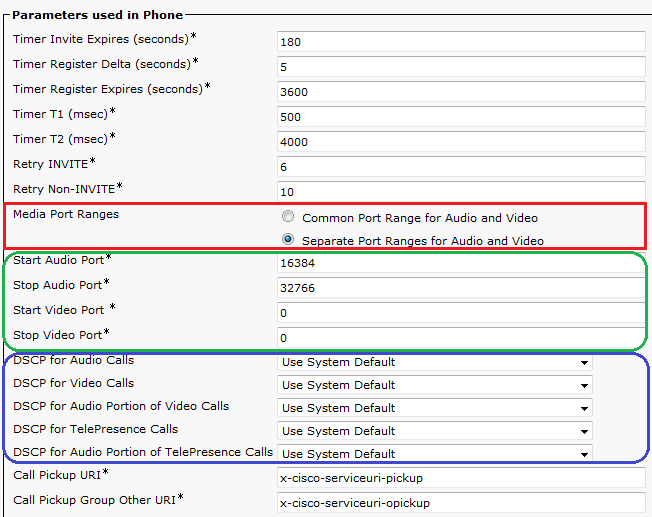
QoS Enhacements in CUCM 11.X

  • These were added in CUCM v11
  • The main enhancements are:
    • Separating UDP Port Ranges for Audio and Video
    • Separating DSCP Markings for Audio and Video streams in Video Calls
      • You can have separate markings for audio in Telepresence video call than Fixed video call
  • Navigate to Device > Device Settings > SIP Profile.
  • Current endpoints which support this enhancement (03/11/2016)
Video Endpoint
DSCP for Audio Portion of Video Calls
DSCP for Audio Portion of TelePresence Calls
8800 Series
Yes
N/A
8900 Series
No
N/A
9900 Series
No
N/A
Jabber
Yes (Jabber for Windows uses Group Policy Objects to mark traffic on the PC else DSCP will be set to '0'. All other Jabber clients are able to mark DSCP natively)
No
DX Series
Yes
Yes
TX Series
N/A
Yes
IX Series
N/A
No
CE 8.x Software Series (SX Series, MX Series G2, MX700, MX800)
N/A
Yes
TC 7.1.4 Software Series (C Series, Profile Series, EX Series, MX Series G1)
N/A
Yes
EX Series (TC Software)
N/A
Yes

  • Restrictions
    • These features are supported on SIP endpoints Only
    • For Jabber Softphones, only separate UDP ports can be used. This is because Windows OS doesn’t allow DSCP markings natively (can be fixed by registry tweak or using GPO)
    • Prior to this feature, Jabber Client will divide the RTP Port Range received in TFTP File into two splits. Lower half will be used for audio and upper half will be used for video

Enable DSCP Markings on Windows OS (7, 8, 10)

By default windows OS will set DSCP markings to '0' ignoring the marking settings on the client. This can be good and bad.

A good scenario is to make sure that torrent clients aren't getting priority (while ideally your enterprise network qos policies should overcome this problem as well)

A bad scenario is overriding DSCP markings from Jabber Client which marks packets genuinely  for seperating audio and video streams treatment.

While you can still overcome the problem of Jabber Client using network QoS policies, you can allow QoS marking on windows OS as follow:

1. Go to HKLM\System\CurrentControlSet\Services\Tcpip\QoS. If "QoS" folder doesn't exist there - create it.
2. Add a DWORD parameter named "Do not use NLA" and assign "1" as its value.
3. Reboot.


Tuesday, November 1, 2016

Notes on Self-Service ID


  • The Self-Service User ID is generate automatically once the primary extension is assigned to the End User
    • The Primary extension can be assigned manually, using LDAP or using BAT
    • For LDAP Self-Service IDs it will be generated during the 1st LDAP sync (not on LDAP update)
  • Self-Service ID will be generated only if the user doesn't have one
  • For upgrades from Pre-10.x to 10.x, Self-Service ID will be generated for users with Primary Extensions
  • When same DN is assigned to multiple partitions and to multiple users as primary extension, Self-Service ID will be made unique by prefixing a code of *01, *02, etc
  • You can change the Self-Service ID, manually from End User configuration page

LDAP Enhancements in CUCM


  • CUCM can synchronize users and groups from LDAP
    • Introduced in version 11
    • LDAP Filter can be created for users and groups
    • Primary use to have Active Directory groups available in the Cisco Jabber contact list
  • CUCM can assign Access Control Groups to LDAP users from synchronization Agreement
  • CUCM can assign Feature Group Template to LDAP users from synchronization Agreement
    • This will assign User Profile to synched user which includes UDT and ULT
    • This will assign Service Profile to synched user which include UC Services (IMP, CUC, etc for jabber)
    • This will configure user settings such as Enable Mobility, Enable EMCC, Allow End User to Host Conference Now
    • This will allow user to run Self-Provisioning
  • CUCM can create DNs for LDAP users and assign them as primary extension using the option Apply mask to synced telephone numbers to create a new line for inserted users
    • The DNs will be based on the TelephoneNumber or ipPhone attributes configured in AD
    • A mask can be applied to these attributes to manipulate the created DNs
    • In case the synched users are missing phone numbers, CUCM can allocate DNs dynamically from pre-configured pool using the option Assign new line from the pool list if one was not created based on a synced LDAP telephone number
  • Navigate to System > LDAP > LDAP Search to integrate CUCM environment with LDAP Environment without synchronization
    • This feature will enable all endpoints and Cisco mobile and remote access clients in the enterprise to perform user searches against an enterprise directory server, even if those endpoints and clients are operating outside the enterprise firewall

CUCM Self-Provisioning


  • This feature allow end-users or administrators to provision phones with minimum admin work
  • It was introduced with CUCM 10.x
  • The users need to follow the prompts on the phones to login to CUCM which will auto-provision the phones
  • How it works?
    • The phone auto-registers with CUCM
    • During auto-registration it gets an idle URL.
    • This idle URL points the phone to self-provision XPS resource running on CUCM
    • Once the phone contacts the XPS resource, it will be prompted for user ID/pin
    • From here there are two approaches to complete Self-Provisioning
      • Option#1
        • When the users enter the user ID and PIN, they are authenticated with the CM and their primary extension is determined
        • The users are then prompted to confirm that they wish to provision the phone using their primary extension. If they confirm, the phone will be provisioned and reset
      • Option#2
        • The users can call Self-Provision IVR
        • The users need to enter Self-Service ID and PIN
        • Upon confirmation, the phone will be provisioned using the End User Primary Extension
  • To disable self-provisioning, delete the idle URL from phones configuration, enterprise parameters, auto-registration Universal Device Template (UDT)
  • To configure Self-Provisioning
    • Verify UDT assigned to System > Cisco Unified CM > Auto Registration Information > Universal Device Template.
    • Navigate to User Management > User/Phone Add > Universal Line Template > Add New
      • Assign default Partition and CSS to be used for self-provisioned DN
      • Configure other settings such as Call Forwarding, Enterprise Alternate Number, +E164 Alternate Number
    • Configure auto-registration settings under System > Cisco Unified CM > Auto Registration Information
      • Assign UDT, ULT and Starting/Ending Directory Numbers
    • Navigate to User Management > Self-Provisioning and configure the authentication method for end users to run self-provisioning
      • Require Authentication
      • No Authentication: In this mode the end users need to enter the username which will trigger the provisioning without a need for PIN/Password
    • Navigate to User Management > User Settings > User Profile > Add New
      • This user profile will be used to configure the device and line settings of the phone during self-provisioning
      • Assign UDT for Desk Phones, Mobile and Desk Devices and RDP
      • Assign ULT
      • Enable Allow End User to Provision their own phones and set the max number of phones to be self-provision
    • Navigate to User Management > User/Phone Add > Feature Group Template > Add New
      • This is used with users synced from AD or users added using quick add feature
      • It will assign Users Profile to synced users
      • It will assign Service Profile to synced users
      • It will configure users settings for synced users such as Enable IM and Presence, Enable Mobility, Enable EMCC, Enable End User to Host Conference Now
    • Add End User
      • The main parameters in end user settings needed for self-provisioning are:
        • User Profile
        • Primary Extension
      • In case the End Users are synced from AD or added using Quick Add, the User Profile will be synched using Feature Group Template
        • Primary extension should be created manually in case of Quick Add or synched automatically in case of AD
      • In case the End Users are added manually, these parameters needs to be assigned manually.
    • Setup Self-Provision IVR
      • Configure CTI Route Point which can be dialed from Auto-Registeration CSS
      • Configure Application User with Standard CCM EndUser and Standard CTI Enabled access control groups
      • Associate the CTI Route Point as controlled device to Application User
      • Navigate to User Management > Self-Provision and assign the CTI Route Point and Application User
  • Troubleshooting Self-Provision IVR
    • IVR Component runs on Publisher Node Only (it doesn’t run on Subscribers)
    • If auto-registered phone doesn't get the configured Phone Button Template in UDT, make sure that Auto Registration Legacy Mode is False in the Enterprise Parameters
      • This setting will disable UDT for auto-registration and fallback to Device Defaults
    • Any change in the Application User or CTI Route Point needs a restart of IVR Self-Provisioning service
    • If the auto-registered phone can't dial CTI Route Point DN, ensure that the region bandwidth between CTI and Phone is greater than 8000

DNS Performance Troubleshooting

When you are troubleshooting internet performance, there are different parts of the connection should be verified:   ·         DNS Pe...