Sunday, February 7, 2021

Troubleshooting DOT1X and Radius in IOS and IOS-XE

    • To verify the status of RADIUS server from NAD, use the command show aaa server


4507#sh aaa servers 


RADIUS: id 3, priority 1, host 10.10.22.30, auth-port 1812, acct-port 1813

     State: current UP, duration 10862s, previous duration 0s

     Dead: total time 0s, count 0

     Quarantined: No

     Authen: request 1, timeouts 0, failover 0, retransmission 0

             Response: accept 0, reject 1, challenge 0

             Response: unexpected 0, server error 0, incorrect 0, time 16ms

             Transaction: success 1, failure 0

             Throttled: transaction 0, timeout 0, failure 0

     Author: request 0, timeouts 0, failover 0, retransmission 0

             Response: accept 0, reject 0, challenge 0

             Response: unexpected 0, server error 0, incorrect 0, time 0ms

             Transaction: success 0, failure 0

             Throttled: transaction 0, timeout 0, failure 0

     Account: request 0, timeouts 0, failover 0, retransmission 0

             Request: start 0, interim 0, stop 0

             Response: start 0, interim 0, stop 0

             Response: unexpected 0, server error 0, incorrect 0, time 0ms

             Transaction: success 0, failure 0

             Throttled: transaction 0, timeout 0, failure 0

     Elapsed time since counters last cleared: 3h1m

     Estimated Outstanding Access Transactions: 0

     Estimated Outstanding Accounting Transactions: 0

     Estimated Throttled Access Transactions: 0

     Estimated Throttled Accounting Transactions: 0

     Maximum Throttled Transactions: access 0, accounting 0

     Requests per minute past 24 hours:

             high - 1 hours, 23 minutes ago: 1

             low  - 3 hours, 1 minutes ago: 0

             average: 0


    • The command show authentication session interface x/x shows the status of the interface


4507#sh authentication sessions interface g1/27

            Interface:  GigabitEthernet1/27

          MAC Address:  b8ca.3aca.8f8f

           IP Address:  10.11.1.71

            User-Name:  B8-CA-3A-CA-8F-8F

               Status:  Authz Success

               Domain:  DATA

       Oper host mode:  multi-auth

     Oper control dir:  both

        Authorized By:  Authentication Server

          Vlan Policy:  N/A

      Session timeout:  3600s (local), Remaining: 2549s

       Timeout action:  Reauthenticate

         Idle timeout:  N/A

    Common Session ID:  0AAA00020001F45660C7C74C

      Acct Session ID:  0x00020413

               Handle:  0x0E000486


Runnable methods list:

       Method   State

       mab      Authc Success


    • Since the authentication is using MAB, you can check MAB details using the command show mab interface x/x


4507#sh mab interface g1/27 details 

MAB details for GigabitEthernet1/27

-------------------------------------

Mac-Auth-Bypass           = Enabled


MAB Client List

---------------

Client MAC                = b8ca.3aca.8f8f

Session ID                = 0AAA00020001F45660C7C74C

MAB SM state              = TERMINATE

Authen Status             = SUCCESS


    • You can clear the current authentication using clear authentication session interface x/x or shutdown the interface
    • Navigate to ISE > Operations > RADIUS > Live Logs to see the current logs
    • Navigate to ISE > Operations > RADIUS > Live Sessions to see the current active sessions
    • Navigate to ISE > Operations > Troubleshoot Diagnostics to check the current logs from NAD devices (Pass/Fail)
    • Navigate to ISE > Operations > Troubleshoot Diagnostics > Endpoint Debugging 
      • Enter endpoint MAC address and start debugging
      • This will generate a log file for all actions taken in ISE related to endpoint
    • Navigate to ISE > Context Visibility > Endpoint > filter by Mac address to check the status of endpoint (Connected, Disconnected, Rejected)
      • Be aware of endpoints in rejected state due of Suppression of Failed Requests feature
      • You can release the endpoints in rejected state 
    • You can test radius authentication from NAD using the command test aaa group radius radtest #radius-key# new-code (this is hidden but should be entered)
    • To very dot1x EAP messages use the command debug dot1x packets


Jul 27 14:29:13.268 GST: dot1x-packet:EAPOL pak Tx - Ver: 0x3  type: 0x0 

Jul 27 14:29:13.268 GST: dot1x-packet: length: 0x0005

Jul 27 14:29:13.268 GST: dot1x-packet:EAP code: 0x1  id: 0x1  length: 0x0005

Jul 27 14:29:13.268 GST: dot1x-packet: type: 0x1 

Jul 27 14:29:13.268 GST: dot1x-packet:[d4be.d974.0d4c, Gi1/0/25] EAPOL packet sent to client 0xBB0001EC


    • To verify MAB messages use the command debug mab all
    • For windows 7 implementation, you need to install the following hotfixes

https://supportforums.cisco.com/t5/security-blogs/getting-past-intermittent-unexplained-802-1x-problems-on-windows/ba-p/3104109


In IOS-XE, debug radius command won't show the output of dot1x and authentication messages. These has change and can be seen as traces from session manager process (SMD).


request platform software trace rotate all       …. To rotate the traces in memory to files in crashinfo directory


Change the trace level from notice (default) to info


set platform software trace smd switch active R0 aaa verbos 

set platform software trace smd switch active R0 dot1x-all verbos

set platform software trace smd switch active R0 radius verbos 

set platform software trace smd switch active R0 mab verbos 


View the traces (you can combine the outputs with pipe)


show platform software trace message smd switch active R0 | i radius|dot1|mab|aaa


To reset the trace levels for all modules, use the command 


set platform software trace smd switch active R0 all-modules

PxGrid Part # 3 - Troubleshooting FMC-ISE Identity Sync

  • From FMC CLI, verify ISE integration status using the command


root@vFPMC:/etc/rc.d# cat /var/sf/run/adi-health

$status = {

     'ADI' => 'UP',

     'Realm5(AD)_TESTLAB.COM' => 'UP',

     'Realm5(AD)_ldap://192.168.7.100:389' => 'UP',

     'Realm5(AD)_ldap://192.168.7.99:389' => 'UP',

     'Realm5(AD)_ldap://172.16.21.100:389' => 'UP',

     'Realm5(AD)_ldap://172.16.21.99:389' => 'UP',

     'Realm7(AD)_TESTLAB.LOCAL' => 'DOWN', *** ignore this

     'Realm7(AD)_ldap://192.168.7.16:389' => 'DOWN',

     'Realm7(AD)_ldap://172.16.21.15:389' => 'DOWN',


     'ISE Services' => 'UP',

     'ISE Identity' => 'UP',

     'ISE Attributes' => 'UP',

     'ISE Remediation' => 'UP',

     'ISE SXP' => 'DISABLED',


     'ISEConnection' => 'UP',

     'Session Directory Subscription' => 'UP',

     'Session Directory Bulkdownload' => 'UP',


     'Endpoint MetaData Subscription' => 'UP',

     'Endpoint MetaData Bulkdownload' => 'UP',


     'SGT MetaData Subscription' => 'UP',

     'SGT MetaData Bulkdownload' => 'UP',


     'Endpoint Protection Service Capability' => 'UP',

     'Adaptive Network Control Capability' => 'UP',


     'SXP Subscription' => 'UNKNOWN',

     'SXP Bulkdownload' => 'UNKNOWN',

};


  • From FMC CLI verify that session updates are received from ISE (this can verified using GUI Analysis > User Activity)


root@vFPMC:/Volume/home/admin# adi_cli session

input 'q' to quit

received realm information: operation REALM_DELETE_ALL, Null realm info

received realm information: operation REALM_ADD, realm name TESTLAB.COM, short name TESTLAB, id 5

received realm information: operation REALM_ADD, realm name TESTLAB.local, short name TESTLAB, id 7

ADI is connected

received user session: username 00:02:99:05:55:51, ip ::ffff:192.168.236.108, location_ip ::ffff:192.168.136.12, realm_id 0, domain , type Add, identity Passive.

received user session: username 00:02:99:12:43:44, ip ::ffff:192.168.126.12, location_ip ::ffff:192.168.126.10, realm_id 0, domain , type Add, identity Passive.

received user session: username 00:02:99:1A:82:E5, ip ::ffff:192.168.134.12, location_ip ::ffff:192.168.134.20, realm_id 0, domain , type Add, identity Passive.

received user session: username 00:04:20:E4:22:51, ip ::ffff:192.168.226.155, location_ip ::ffff:192.168.126.20, realm_id 0, domain , type Add, identity Passive.

received user session: username 00:04:F2:E6:2F:1C, ip ::ffff:192.168.4.52, location_ip ::ffff:192.168.14.10, realm_id 0, domain , type Add, identity Passive.

received user session: username 00:04:F2:F5:9E:CC, ip ::ffff:192.168.126.103, location_ip ::ffff:192.168.126.20, realm_id 0, domain , type Add, identity Passive.

received user session: username 00:04:F2:F5:9E:F6, ip ::ffff:192.168.130.105, location_ip ::ffff:192.168.130.14, realm_id 0, domain , type Add, identity Passive.

received user session: username 00:04:F2:F5:9F:3F, ip ::ffff:192.168.132.119, location_ip ::ffff:192.168.132.10, realm_id 0, domain , type Add, identity Passive.

received user session: username 00:04:F2:F5:AC:BC, ip ::ffff:192.168.123.102, location_ip ::ffff:192.168.123.15, realm_id 0, domain , type Add, identity Passive.

received user session: username 00:04:F2:F5:B6:3D, ip ::ffff:192.168.134.103, location_ip ::ffff:192.168.134.30, realm_id 0, domain , type Add, identity Passive.

received user session: username 00:04:F2:F5:C0:A8, ip ::ffff:192.168.124.108, location_ip ::ffff:192.168.124.12, realm_id 0, domain , type Add, identity Passive.

received user session: username 00:04:F2:F5:EF:A9, ip ::ffff:192.168.4.51, location_ip ::ffff:192.168.14.10, realm_id 0, domain , type Delete, identity Passive


  • From FTD CLI, verify the mapping of IP delivered from FMC to FTD using the script user_map_query.pl -i 172.16.20.165 (you can lookup using -u with username instead of IP. Use --help to see all available switches) 

root@aun-firepower:/home/admin# user_map_query.pl -i 172.16.20.165


WARNING: This script was not tested on this major version (6.5.0)! The results may be unexpected.

Current Time: 05/06/2020 06:19:30 UTC


Getting information on IP Address(es)...


___

IP #1: 172.16.20.165

---


==============================

|          Database          |

==============================


##) Username (ID) [Realm ID]

 1) testuser (2827) [5]      

      for_policy: 0

      Last Seen: Unknown

      Realm Name: Unknown


From above information, we know that the user testuser has a unique identity of 2827 in FTD 


  • Use the command cat /ngfw/var/sf/detection_engines/<UUID>/ngfw.rules to verify the ACP rules with identity mapping


# Start of AC rule.

268485640 allow any any  any any 172.16.22.10 32 22 any 6 (group 4)

268485640 allow any any  any any 172.16.22.10 32 any any 1 (group 4)

# End rule 268485640


From above info, we know that AD Group is having unique identity in FTD as 4 (in FMC ACP GUI this group is named Network-Admins)


  • Use the command system support firewall-engine-dump-user-identity-data to generate a dump file with current identity info on the FTD
  • From expert mode run the command cat /var/sf/detection_engines/<UUID>/instance-1/user_identity.dump to view the dump file


root@aun-firepower:/home/admin# cat /var/sf/detection_engines/2dec3c86-7e22-11ea-9253-e530beb8a2d2/instance-1/user_identity.dump 


-------------------

 User/Group counts:

-------------------

     num hosts:                742 

     num groups:               1 

     num user/group mappings:  3 

     num of users:             757 

     num of shared users:      0 

     num skipped:              0 

     num cache misses:         0 

     num cache updates:        0 


-------------------

 User/Group mem usage:

-------------------

     group_bit_hash:  32884 

     user_group_hash: 32963 

     host_hash:       360176 

     user_ip_hash:    27252 

     total:           453275 


-------------------

 Sxp memory usage:

-------------------

Sxp nodes count: 0

Sxp tree size : 32


----------------

IP:USER

----------------

……..


Host ::ffff:172.16.20.165

::ffff:172.16.20.165:2827 realm 5 type 1

::ffff:172.16.20.165: sgt id 0, sgt val 0, device_type 1239, location_ip ::ffff:192.168.14.1


……

-------------------

USER:GROUPS

-------------------

2198:4, (active_sessions: 1)

2315:4, (active_sessions: 1)

2827:4, (active_sessions: 1)


From above info, we know that user testuser with identity 2827 is mapped to group 4 which is assigned to the ACP policy as Network-Admins AD Group


  • To understand the identity lookup process on FTD, run the command system support identity-debug


> system support identity-debug


Please specify an IP protocol: 

Please specify a client IP address: 172.16.20.165

Please specify a client port: 

Please specify a server IP address: 

Please specify a server port: 

Monitoring identity debug messages


172.16.20.165-8 > 172.16.22.10-0 1 AS 1 I 0 Starting authentication (sfAuthCheckRules params) with zones -1 -> -1, port 0 -> 0, geo 16663792 -> 16663810

172.16.20.165-8 > 172.16.22.10-0 1 AS 1 I 0 found passive session

172.16.20.165-8 > 172.16.22.10-0 1 AS 1 I 0 returning passive session

172.16.20.165-8 > 172.16.22.10-0 1 AS 1 I 0 found passive binding for user_id 2827

172.16.20.165-8 > 172.16.22.10-0 1 AS 1 I 0 matched auth rule id = 1 user_id = 2827 realm_id = 5


  • When a connection is started, FTD will lookup the identity DB to get the username of the incoming IP, this will be appended to the other packet information(SGT, VLAN, etc) to be looked up against ACP policy. We saw earlier that user 2827 is mapped to AD group 4 which is allowed by the ACP policy.


> system support firewall-engine-debug


Please specify an IP protocol: 

Please specify a client IP address: 172.16.20.165

Please specify a client port: 

Please specify a server IP address: 

Please specify a server port: 

Monitoring firewall engine debug messages


172.16.20.165-8 > 172.16.22.10-0 1 AS 1 I 0 new firewall session

172.16.20.165-8 > 172.16.22.10-0 1 AS 1 I 0 Starting with minimum 8, 'TEST-MGMT', and IPProto first with zones -1 -> -1, geo 0 -> 0, vlan 0, source sgt type: 0, source sgt tag: 0, ISE sgt id: 0, dest sgt type: 0, ISE dest sgt tag: 0, svc 3501, payload 0, client 2000003501, misc 0, user 2827, icmpType 8, icmpCode 0

172.16.20.165-8 > 172.16.22.10-0 1 AS 1 I 0 rule order 8, 'TEST-MGMT', matched group 4

172.16.20.165-8 > 172.16.22.10-0 1 AS 1 I 0 match rule order 8, 'TEST-MGMT', action Allow

172.16.20.165-8 > 172.16.22.10-0 1 AS 1 I 0 MidRecovery data sent for rule id: 268485640,rule_action:2, rev id:282505566, rule_match flag:0x0

172.16.20.165-8 > 172.16.22.10-0 1 AS 1 I 0 HitCount data sent for rule id: 268485640,

172.16.20.165-8 > 172.16.22.10-0 1 AS 1 I 0 IAB: number=2, load=0.003017

172.16.20.165-8 > 172.16.22.10-0 1 AS 1 I 0 IAB: latency=57

172.16.20.165-8 > 172.16.22.10-0 1 AS 1 I 0 IAB: drops=0.000000

172.16.20.165-8 > 172.16.22.10-0 1 AS 1 I 0 allow action

172.16.20.165-8 > 172.16.22.10-0 1 AS 1 I 0 deleting firewall session flags = 0x800, fwFlags = 0x102


***** Check Identity DB in FTD ******


Run the command OmniQuery.pl to connect to identity DB


Type select * from user_group_map; to list the user to group mappings


From the output we can identify the ID’s of user1 (37) and user2 (39) used in testing and the group associated with the user.


Type select * from user_group; to list the group mappings


From the output you can determine the current realm ID 4 and the 2 downloaded groups (Customer1 and Customer2). Realm ID 3 was previously used for testing, which is why the output lists the groups.


Type select * from user_identities; to list the user identities table


The output will provide the Realm ID (only relevant if more than one Realm in use), the user ID and the real username


You can apply filters using syntax like OmniQuery.pl -db mdb -e "select * from user_identities where username like '%test.user%';"


PxGrid Part # 1 - Introduction to PxGrid in ISE

  • Prior to ISE 2.4 was PxGrid v 1
  • ISE 2.4+ uses PxGrid v2 and v1


Summary

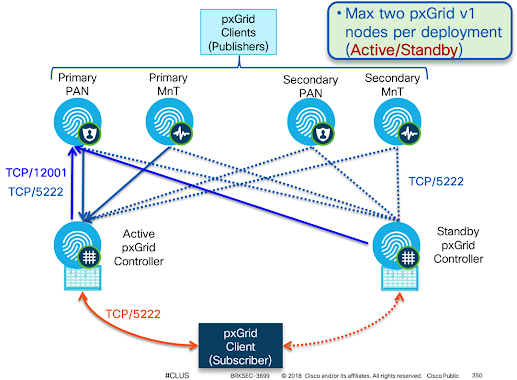
  • From a PxGrid v1 perspective, 100% active/standby, and the PxGrid services will be down on the secondary node. They will be actived in the case of PxGrid controller failove
  • PxGrid v2 runs on port 8910, which is leveraged by webclients. Port 8910 with websockets is the way that pxgrid v2 operates, while port 5222 was the XMPP port pxgrid v1 used. The guide indicates that 5222 will only be open on the active node while 8910 will be                 open on all nodes.
    • "For XMPP (Extensible Messaging and Presence Protocol ) clients, pxGrid nodes work in Active/Standby high availability                         mode which means that the pxGrid Service is in "running" state on the active node and in "disabled" state on the standby node
  • In a high-availability configuration, Cisco pxGrid servers replicate information between the pxGrid nodes through the PAN.
  • When the PAN goes down, pxGrid server stops handling the client registration and subscription. You need to manually promote the PAN for the pxGrid server to become active.
    • Only registered and subscribed nodes can request information. Not new node
  • You can check the pxGrid Services page (Administration > pxGrid Services) to verify whether a pxGrid node is currently in active or standby state.
  • After the automatic failover to the secondary pxGrid node is initiated, if the original primary pxGrid node is brought back into the network, the original primary pxGrid node will continue to have the secondary role and will not be promoted back to the primary role              unless the current primary node goes down.


PxGrid Certs


Beginning in ISE version 2.2, all pxGrid communications between all nodes occur within the secure pxGrid channel using the pxGrid certificate of the ISE node. 


Beginning in ISE 2.2, each node’s pxGrid certificate will be signed automatically by the internal CA.

Truly, recommended practice dictates that you use the CA built into ISE for all pxGrid communications to keep things easy and working well. Also, use it to sign certificates for PxGrid clients


The steps are as follows:


Navigate to Administration > System > Certificates


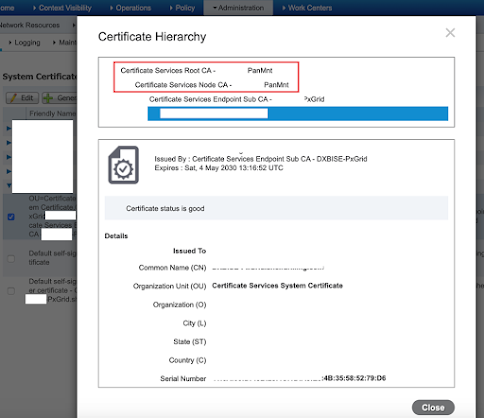
Select the pxGrid certificate of one of the nodes, by selecting the checkbook on the left end of the row > Click view

Check that the root signer of the certificate is the primary PAN of the ISE cube (the root CA)


Tip # 1

If you lose locally generated certificates such as pxGrid, regenerate them as follow:

Administration > Certificates > Certificates Signing Requests > Generate CSR > ISE Root CA 


PxGrid Arch


Components of PxGrid System


  • PxGrid Controller (PxGrid Persona)
  • PxGrid Publisher (MnT and PAN)
  • PxGrid Subscriber (FMC, WSA, etc)


PAN Publisher Topics:


  • Controller AdmiN
  • TrustSec/SGT
  • Endpoint Profile


MnT Publisher Topics:


  • Session Directory
  • Identity Group
  • ANC (EPS)

PxGrid HA


PxGrid v1 Scenario


  • Clients connect to single active controller for given domain
  • If active pxGrid Controller fails, clients automatically attempt connection to standby controller.


PxGrid v2 Scenario


  • pxGrid clients can be configured with multiple servers for redundancy.
  • Clients connect to single active controller for given domain


Max nodes


PxGrid Part # 2 - Integration with FMC

The FMC leverages pxGrid to learn the context of who and what is on the network and the mapping of those devices to IP addresses (User Activity and Host Profiling on FMC). However, the FMC leverages the LDAP-based realms to learn about what users and groups exist in Active Directory for the creation of access policy.

  • New connection seen by FTD using IP Address
  • FTD perform context check to find the username of the IP address. This is based on User Activity information in FMC which is shared from ISE
  • The username is verified against ACP which should have usernames/groups imported from LDAP Realm


Tip # 1

PxGrid version 2 was introduced in FMC 6.7 only. Pre-6.7 PxGrid 1.0 is used


Configuration Steps

Enable PxGrid on one of nodes in the deployment, Administration > Deployment > Select the ISE node to be used for pxGrid persona 


Verify PxGriD service is running


# show application status ise | in pxGrid

pxGrid Infrastructure Service running 24062

pxGrid Publisher Subscriber Service running 24366

pxGrid Connection Manager running 24323

pxGrid Controller running 24404


From Administration > pxGrid Services at the bottom of the page, ISE should display Connected to pxGrid <pxGrid node FQDN> as shown in the image


Once the pxGrid services are all up and running, the PAN and MnT will automatically register and publish their respective topics into the grid, as shown 


Notice in Figure the way the topics are listed under the pxGrid participant, as well as the role that node plays with the topic (Pub or Sub).


From Administration > pxGrid Services > Settings > Check the box: "Automatically approve new certificate-based accounts" 


Navigate to Administration > pxGrid Services > Certificates to generate PxGrid Cert to be imported in FMC


The generate zip file contains the signed certificate, the encrypted private key, and all the signing certificates in the PKI hierarchy for the issued certificate. Additionally, the signing certificates in the PKI hierarchy for the admin certificate are also included for good measure. Beginning with ISE 2.2, they should not be required, but are included in the ZIP file anyway.


Install the Certs in the FMC as follow and hit Test:


**** Make sure the when you install FMC Server Cert, you apply the encryption password. Otherwise installation will fail


Sunday, July 7, 2019

BlockChain: Double-Spend Attack - In Simple Terms !!


  • The idea is to use the same cryptocurrency for more than one transaction
  • How it works?
    • Starting from block N, malicious pool privately mine to extend the blockchain as much as possible but do not publicize.
    • Assuming that a user places a purchase for digital asset, broadcast the transaction to the organization of interest (merchant).
    • Wait patiently until enough confirmations are received and the transaction successfully gets recorded in the blockchain, so that the merchant dispatches the product.
    • Secretly mine for extending the private branch until it is longer than public branch. If succeeds in doing so, publicize the secret branch that will be eventually accepted to be valid and the block containing payment to merchant will be discarded.

DNS Performance Troubleshooting

When you are troubleshooting internet performance, there are different parts of the connection should be verified:   ·         DNS Pe...