Showing posts with label UCCX. Show all posts

Monday, April 10, 2017

Bandwidth and Storage Requirements for Voice and Screen Recording in a Contact Center

We have recently been asked by a contact center to calculate the local network bandwidth and the HDD storage needed for implementing the PhoneUP Voice and Screen Recording solution for 300 agent seats.

Imagine 300 simultaneous audio/video streams recorded 18 hours a day (the agent utilization rate is 75%) 7 days a week and then stored for 1 year. Let’s neglect the voice part as the major load on both the LAN and the HDD storage is produced by the video (screen) recording.

Well... the most used screen resolution is 1366x768 (by w3schools) which is (roughly) corresponds to 720p movie format. And as we all know the file size per hour of 720p movie is about 2Gb. With this in mind thinking about 300 video streams recorded 18x7 could make your hair stand on end. But it’s not that bad.

Let’s examine parameters which influence the size of a screen recording video and how they can be optimized in the case of agent screen recording.

1.       The codec.
PhoneUP uses H.264 and here’s the first major saving. The movie we mentioned above is whole dynamic – every part of it constantly changes throughout the film. But contact center agents usually don’t watch Youtube when talking to customers. They work with CRM instead and that means that 95% of the screen is static, the only part that changes is where the agent, say, types the customer complaint (or selects an item from the drop-down list, or pushes a button etc). So, when compressed with H.264, such “static” nature of the video makes the file size 3-4 times less.

2.       The quality.
The agent screen recording is hardly the type of video you need to be of the highest quality. If you can read what agent typed when on phone – that’s enough. In our projects the quality setting of H.264 codec is usually 0,5-0,7.

3.       The FPS (frame per second) rate.

Most movies are shot at 24 FPS, but then again, this is not the case for screen recording in a contact center. You don’t need a smooth movie of the agent screen to understand what text is entered and which button is clicked. FPS 5-7 could be enough for recording the screen with CRM.

Tuesday, November 16, 2010

UCCX - Understand & Configure HTTP Contacts

HTTP contact is similar to call contact which is triggering a script to run, however; in this case UCCX will accept web contact/trigger to run the script. The user should browse a URL that is configured in UCCX as http trigger.

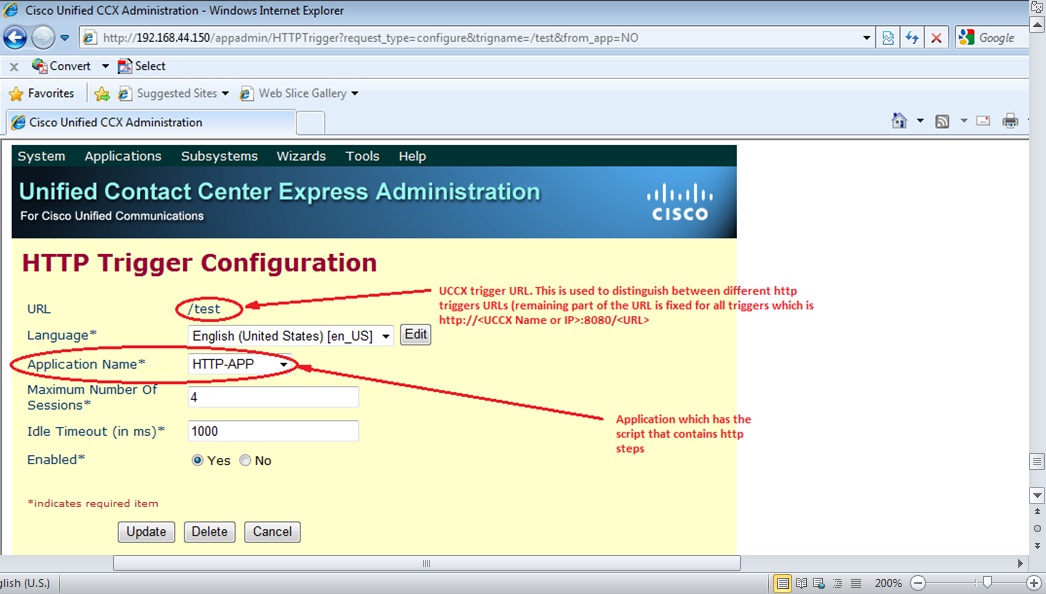
HTTP trigger will link to an application that is associated with the script that contains http steps. 

UCCX uses port 8080 for http trigger and the URL should follow the following format:
http://(UCCX-Name or UCCX-IP-Addr):8080/(URL)
The (URL) variable will be explained below.

You may need to map the IP and/or perform port redirection in order to publish this page for internet or intranet users (specially port redirection since normal users don't prefer to type ports in the URL). This can be done with NAT devices such as routes or firewalls and UCCX functionality won't be affected.

Below are the steps to create HTTP contact:

1. Create and upload a script (we will assume that its already present and uploaded to UCCX)
2. Create an application and associate it with the script (this is exactly similar to call contact application)
3. Create HTTP trigger as below (Subsystems > HTTP)


Below is a simple script that can be used by ACD agents to view queue statistics. Using this script agents will browse the URL http://queuestatistics.com which will trigger http contact that collects statistics from UCCX real time reporting tool about queue statistics and generate the report. 

Note that template document keywords (document variables which should modified) can be entered/typed manually in "keyword transform step" or imported from template itself. This can be done by selecting import button then selecting the template which contains the keywords between % signs (you can see this in HTML template at the end of the blog).
 
Here is the summary of script steps:

1. Obtain http request method and save it in REQUEST_METHOD string variable (this is for my own purpose. I used it during debugging to realize HTTP requesting method and found it GET)
2. Get two parameters (queue statistics) from UCCX real time reporting tool which are "excepted wait time" and "average talk time" and save them in two integer variables which are "IPCCNotReady" and "AgentAverageTalkTime" respectively.
3. Load "queue statistics report" template (which is HTML template) in document variable DOC. The HTML file is listed below and should be uploaded in UCCX (Applications > Documents)
4. Update the template keywords with the integer variables values filled in step 2. This is done using "Keywords Transform Step".
5. Send the resulted document/report to requester as HTTP response. 

Below is snapshot sample of generated report ,


Also, here is the code for HTML report template/document


UCCX - Agent State after Call Completion

Below diagram explains how agent state will change after completing ACD call.

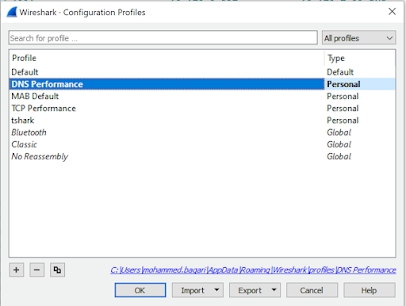
DNS Performance Troubleshooting

When you are troubleshooting internet performance, there are different parts of the connection should be verified:   ·         DNS Pe...